🔐 Secure passwords storage with Vaultwarden

Vaultwarden is an unofficial Bitwarden open-source server implementation written in Rust. It is compatible with the official Bitwarden clients, and is ideal for self-hosted deployments where running the official resource-heavy service is undesirable.
Vaultwarden is targeted towards individuals, families, and smaller organizations.
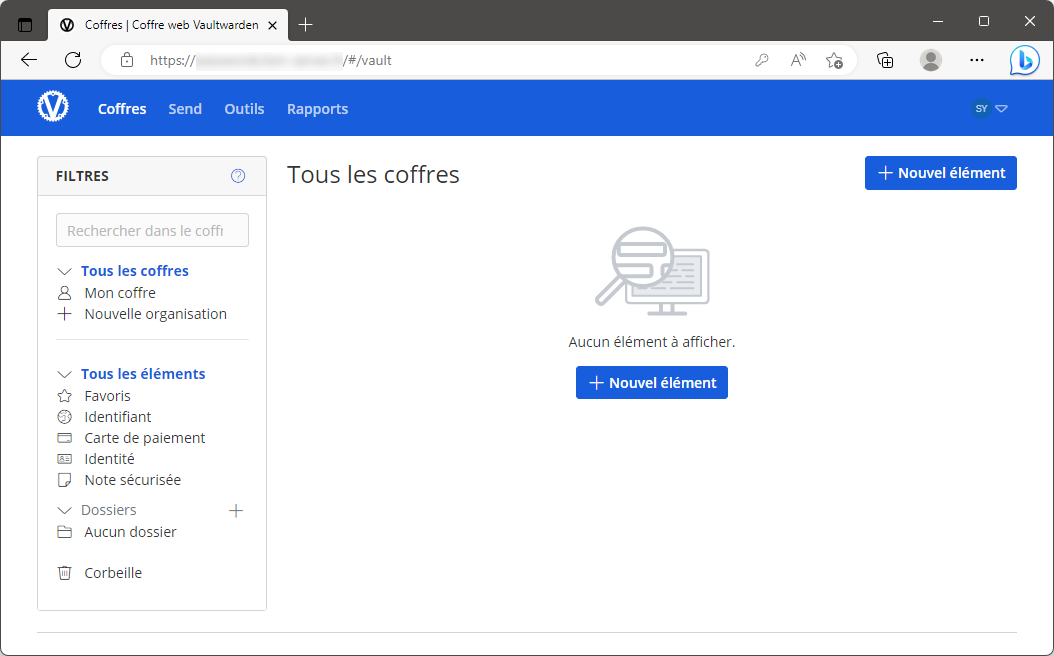
Features:
- 📂 It is open-source
- 🔐 Bitwarden uses 256-bit AES to secure the user data
- ✅ Two-factor authentication via applications such as email, Duo e.t.c
- 🕵️♂️ Password auditing and breach monitoring
- 🏠 The Bitwarden server is self-hosted on-premises keeping content safe and secure
Info
The project is open-source and can be downloaded here: https://github.com/dani-garcia/vaultwarden.
📥 Installation
📋 Requirements
🐳 Install Vaultwarden
The use of Docker Compose will automate the installation of vaultwarden container.
🔧 Setup Vaultwarden Parameters
Before deploying Vaultwarden, you need to define a few environment variables that will be used throughout the setup process.
BASE_URL: public URL where the web service is accessibleHOST_PORT: external port used by NGINX to route traffic to the servicePASSWORD: plaintext password to be hashed with theargon2algorithmSMTP_HOST: address of the SMTP serverSMTP_FROM: sender email address used in outgoing messagesSMTP_USERNAME: username for authenticating with the SMTP serverSMTP_PASSWORD: password or app-specific token for SMTP authentication
# example of configuration for environment parameters
BASE_URL=https://vaultwarden.domain.fr
HOST_PORT=10005
PASSWORD=my_password
SMTP_HOST=smtp.gmail.com
SMTP_FROM=user@gmail.com
SMTP_USERNAME=user@gmail.com
SMTP_PASSWORD="baoi lvyi cgev wzzq"
Getting Your Gmail SMTP Password
To send emails via Gmail SMTP, you'll need to generate an App Password—a special password used for third-party applications. Visit myaccount.google.com/apppasswords to create one.
Use the generated password in the SMTP_PASSWORD field of your configuration.
⚙️ Configure Vaultwarden for Docker Compose
Vaultwarden can be deployed using Docker Compose.
The compose.yml file will automatically incorporate the environment variables configured in the previous step.
You can copy, paste, and run all of the following commands directly in your terminal.
# create docker directory
mkdir vaultwarden && cd vaultwarden
mkdir data
# setup of Dockerfile
tee Dockerfile > /dev/null <<'EOF'
#############################################
##### Runtime image
#############################################
FROM vaultwarden/server:latest

#############################################
##### Rate limiting
#############################################
ENV LOGIN_RATELIMIT_MAX_BURST=10 \
    LOGIN_RATELIMIT_SECONDS=60 \
    ADMIN_RATELIMIT_MAX_BURST=10 \
    ADMIN_RATELIMIT_SECONDS=60

#############################################
##### Feature toggles
#############################################
ENV SENDS_ALLOWED=true \
    EMERGENCY_ACCESS_ALLOWED=false \
    WEB_VAULT_ENABLED=true

#############################################
##### Signup & verification
#############################################
ENV SIGNUPS_VERIFY=true \
    SIGNUPS_VERIFY_RESEND_TIME=3600 \
    SIGNUPS_VERIFY_RESEND_LIMIT=5

#############################################
##### SMTP defaults
#############################################
ENV SMTP_FROM_NAME=Vaultwarden \
    SMTP_SECURITY=starttls \
    SMTP_PORT=587
EOF
# setup of compose.yml
tee compose.yml > /dev/null <<'EOF'
services:
  vaultwarden:
    build: .
    image: vaultwarden:latest
    container_name: vaultwarden
    user: "${PUID}:${PGID}"
    volumes:
      - ./data:/data:rw
    environment:
      - DOMAIN=${BASE_URL}
      - ADMIN_TOKEN=${TOKEN}
      - SMTP_HOST=${SMTP_HOST}
      - SMTP_FROM=${SMTP_FROM}
      - SMTP_USERNAME=${SMTP_USERNAME}
      - SMTP_PASSWORD=${SMTP_PASSWORD}
    ports:
      - ${HOST_PORT}:80
    healthcheck:
      test: ["CMD", "curl", "-fsS", "-o", "/dev/null", "http://localhost:80/api/alive"]
      start_period: 180s
      start_interval: 5s
      interval: 60s
      timeout: 1s
      retries: 3
    restart: unless-stopped
EOF
# install argon2 program and hash the password using argon2
sudo apt-get install -y argon2
HASH_PASSWORD=$(echo -n "${PASSWORD}" | argon2 "$(openssl rand -base64 32)" -e -id -k 65540 -t 3 -p 4)

# setup of .env file
tee .env > /dev/null <<EOF
###################################################################################
# Run as non-root user
###################################################################################
PUID=$(id -u)
PGID=$(id -g)

###################################################################################
# NGINX Proxy Configuration
###################################################################################
BASE_URL=${BASE_URL}
HOST_PORT=${HOST_PORT}

###################################################################################
# Vaultwarden Configuration
###################################################################################
# WARNING: this is your plaintext admin password — store it securely (e.g. in a password manager)
PASSWORD=${PASSWORD}
TOKEN='${HASH_PASSWORD}'
SMTP_HOST=${SMTP_HOST}
SMTP_FROM=${SMTP_FROM}
SMTP_USERNAME=${SMTP_USERNAME}
SMTP_PASSWORD=${SMTP_PASSWORD}
EOF
Keep the .env file
All the secret informations will be stored in the .env file.
🐳 Install Vaultwarden with Docker Compose
Now that the compose.yml file has been generated, it's time to install all the containers.
# install and start the container
docker compose up -d
🚀 Deploy Vaultwarden
Install NGINX
NGINX needs to be installed, follow the NGINX section.
Configure NGINX
NGINX needs to be configured using a file in /etc/nginx/sites-enabled directory.
This configuration file specify the documentation path:
server {
  server_name vaultwarden.domain.fr;

  # setup 404 error_page
  error_page 404 /404.html;
  include snippets/error-404.conf;

  # reverse proxy
  location / {
    proxy_pass http://127.0.0.1:10005;

    # keep it HTTP/1.1
    proxy_http_version 1.1;

    # websocket support (required for real-time notifications)
    proxy_set_header Upgrade $http_upgrade;
    proxy_set_header Connection "upgrade";

    # forwarded headers
    include proxy_params;
    proxy_set_header X-Forwarded-Host $host;
    proxy_set_header X-Forwarded-Port $server_port;
  }
}
# restart nginx
sudo nginx -t && sudo service nginx restart
Replace
vaultwarden.domain.frby the name of your website.
Activate HTTPS
To activate HTTPS protocol, follow the Let's Encrypt section.
⚙️ Configure Vaultwarden
Disable user registration
By default everyone can create its account. To disable registration of new users:
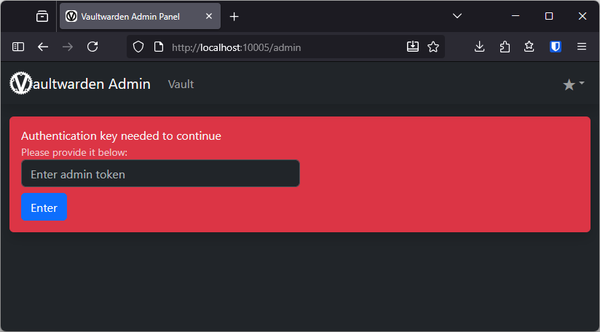
- Login to: https://vaultwarden.domain.fr/admin
- Enter the password used to generate the
argon2TOKEN - Enter in General Settings section
- Uncheck "Allow new signups"
- Uncheck "Allow invitations"
- Save