Firefox

Introduction
Mozilla Firefox is a free, open-source web browser developed by the Mozilla Foundation. Known for its speed, security, and flexibility, Firefox is available across multiple platforms, including Windows, macOS, and Linux. It supports a wide range of customization options through extensions, themes, and developer tools, making it a popular choice for both everyday browsing and advanced use cases such as web development, privacy protection, and secure remote access.
Configure Firefox
Using Firefox Portable with a Proxy

In some cases, you may need a separate browser instance to access remote systems or bypass network restrictions without altering your default Firefox configuration.
The Firefox Portable Edition is a self-contained version of Firefox that:
- Does not require administrator rights for installation.
- Does not modify your existing Firefox settings or profile.
- Can be launched only when needed, such as when bypassing the company firewall through an SSH tunnel.
This makes it a convenient and secure option for managing connections to remote devices.
Configure firefox proxy by openning the about:preferences#general address:
Putty Configuration
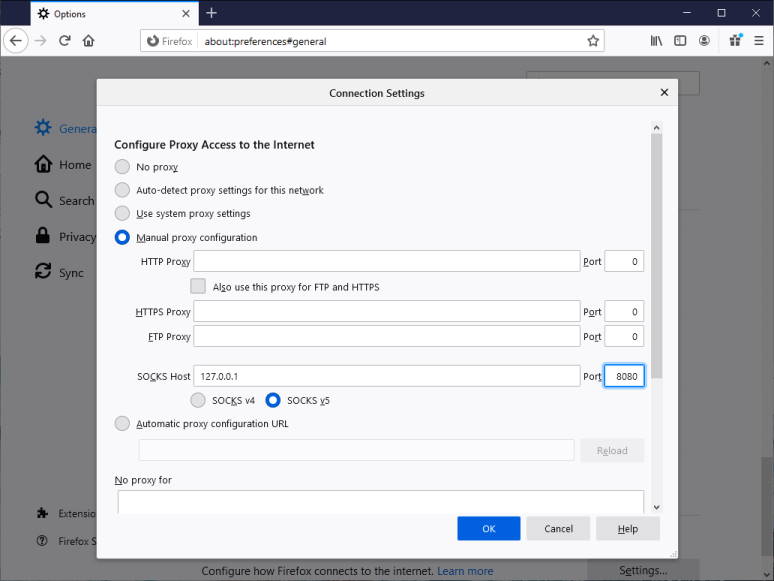
# Manual proxy configuration      [x]
# SOCKS
#     Host:                       127.0.0.1
#     Port:                       8080
# SOCKS v5                        [x]
#
# No proxy for:
Tip
All the communications done by the Firefox browser are now encrypted and forwarded through the ssh tunnel to the ODROID-C4. You should be able to access your box settings remotely using the proxy!
Configure Bookmarks Toolbar
To customize the Firefox bookmarks toolbar, you must modify Firefox’s UI override files:
userChrome.cssuserContent.css
These files allow you to change the appearance and behavior of the browser interface, including the bookmarks toolbar.
Locate Your Firefox Profile Directory
Locate Your Firefox Profile Directory
- In the Firefox address bar, type:
about:profiles - Under Root Directory, click Open Folder.
-
Create
chromedirectory anduserChrome.css/userContent.cssfiles. Your profile folder will look like this:<profile_folder> └── chrome/ ├── userChrome.css └── userContent.css
Add Custom Bookmarks Toolbar Icons
Insert code into userChrome.css
/* Custom favicon for tabs, bookmarks toolbar and bookmarks menu */
.tab-icon-image[src*="clients.boursorama.com"],
.toolbarbutton-icon[src*="clients.boursorama.com"],
.menu-iconic-icon[src*="clients.boursorama.com"] {
  background: url("https://www.boursorama.com/bundles/boursoramaui/images/favicon/favicon-16x16.png") !important;
  background-size: 16px !important;
  width: 0px !important;
  padding-left: 16px !important;
}
Restart Firefox
After enabling the setting, restart Firefox.
Multi-Row Bookmarks Toolbar
Insert code into userChrome.css
/* Source file https://github.com/MrOtherGuy/firefox-csshacks/tree/master/chrome/multi-row_bookmarks.css made available under Mozilla Public License v. 2.0
See the above repository for updates as well as full license text. */

/* Makes bookmarks toolbar span multiple rows */

#PersonalToolbar{
  --multirow-bmb-n-rows: 2; /* Control how many rows are shown before scrolling */
  --multirow-bmb-row-margin: 2px; /* Control how much spacing is between rows */
  max-height: none !important;
}
:root[BookmarksToolbarOverlapsBrowser] :where(#PersonalToolbar){
  height: unset !important;
}

#PlacesToolbar > hbox:not(#PlacesToolbarDropIndicatorHolder){
  display: block;
  width: 100vw;
}

#PlacesToolbarItems{
  display: flex;
  flex-wrap: wrap;
  /* --uc-bm-padding is defined in autohide_bookmarks_toolbar.css */
  max-height: calc(var(--multirow-bmb-n-rows) * (4px + 1em + (2 * (var(--multirow-bmb-row-margin) + var(--uc-bm-padding,var(--bookmark-block-padding)))))) !important;
  overflow-y:auto;
  scrollbar-color: var(--lwt-accent-color,var(--toolbox-bgcolor)) var(--toolbar-bgcolor);
  scrollbar-gutter: stable;
  scrollbar-width: thin;
}

/* Hide the all-bookmarks button */
#PlacesChevron{ display: none }

/* Add some spacing between rows, inline margin is collapsed to prevent dragging issues */
#PlacesToolbarItems > .bookmark-item{
  margin: var(--multirow-bmb-row-margin) 0 !important;
  border-inline: 2px solid transparent;
  visibility: visible !important; /* Just in case they would be hidden for some reason */
}
Enable Legacy Profile Customization
To allow Firefox to load userChrome.css:
- Open
about:configin the address bar. - Search for:
toolkit.legacyUserProfileCustomizations.stylesheets - Set the value to true.
Restart Firefox
After enabling the setting, restart Firefox.