Kodi Media Center Setup

Overview
Kodi is a free and open-source media player developed by the Kodi Foundation. It is available on multiple operating systems and hardware platforms and features a 10-foot user interface optimized for TV screens and remote controls. Kodi allows playback of videos, music, podcasts, and other digital media from both local and network sources.
This guide outlines the necessary steps to properly rename, clean, and configure your media files and Kodi settings to ensure accurate metadata scraping and optimal media library presentation.
Preparing Your Media Files
File Naming Conventions
To ensure reliable metadata scraping, all movie and TV series files must be renamed in English. Using non-English titles may result in incorrect matches during scanning.
Use English Titles
Always rename your movie and TV series files using English titles to avoid scraper errors.
Cleaning MKV Metadata

Use MKV StreamForge to clean properly your media files:
- automatic rename to
SXXEXX.mkvfor episode series - setup the
titleanddatefor films - setup the stream flags properly
Adding Thumbnails (Posters)
Kodi fetches posters automatically, but to use custom posters, download them from TheTVDB and place them in the same directory, using the filename format:
<movie-name>-poster.jpg
Detecting Missing Posters
Use the following script to identify .mkv files missing posters:
python find_mkv_without_posters.py directory="X:\Movies"
import os
import sys

def parse_args():
    # Simple manual parsing of key=value arguments
    args = {}
    for arg in sys.argv[1:]:
        if "=" in arg:
            key, value = arg.split("=", 1)
            args[key.strip()] = value.strip().strip('"')
    return args

def check_mkv_and_posters(directory):
    # List all files in the directory
    files = os.listdir(directory)

    # Collect mkv and poster base names
    mkv_basenames = {os.path.splitext(f)[0] for f in files if f.endswith('.mkv')}
    poster_basenames = {f[:-11] for f in files if f.endswith('-poster.jpg')}

    # MKV files missing posters
    mkv_missing_posters = sorted(mkv_basenames - poster_basenames)

    # Poster files missing MKVs
    posters_missing_mkv = sorted(poster_basenames - mkv_basenames)

    if mkv_missing_posters:
        print("MKV files missing a -poster.jpg:")
        for name in mkv_missing_posters:
            print(f"{name}.mkv")
    else:
        print("✅ All MKV files have a matching -poster.jpg")

    print()  # Spacer

    if posters_missing_mkv:
        print("Poster files without a matching .mkv:")
        for name in posters_missing_mkv:
            print(f"{name}-poster.jpg")
    else:
        print("✅ All poster files have a matching .mkv")

if __name__ == "__main__":
    args = parse_args()
    directory = args.get("directory", ".")
    if not os.path.isdir(directory):
        print(f"❌ Invalid directory: {directory}")
    else:
        check_mkv_and_posters(directory)
Kodi Application Setup
Recommended Kodi Settings
Settings
  Interface
    Regional
      Language: English
      Virtual keyboard layouts: English AZERTY
      Region default format: Central Europe

    Skin
      Configure skin
        Main menu items
          Enable category widgets: off
          Movies: on
          TV shows: on
          Music: off
          TV: off
          Radio: off
          Add-ons: off
          Pictures: off
          Videos: off
          Games: off
          Favourites: off
          Weather: off

  Media
    Library
      Ignore video extras on scan: on

    Videos
      Use video tags: on
      Extract video information from files: on
      Extract chapter thumbnails: off
      Show movie sets: off
      Flatten hierarchy: on
      Artwork level: Basic
      Extract thumbnails from video files: on

  System
    Display
      Resolution: 3840x2160p
      Refreshrate: 60.00
      GUI peak luminance in HDR PQ mode: 65%
    Audio
      Number of channels: 3.1
      Resample quality: High

      Play GUI Sounds: Never
      Allow passthrough: on
      Dolby Digital (AC3) capable receiver: on
      Dolby Digital Plus (E-AC3) capable receiver: on
      DTS capable receiver: on
      TrueHD capable receiver: on
      DTS-HD capable receiver: on

    Logging
      Enable event logging: off
Info
Activate Expert mode when possible.
Adding Media to Kodi
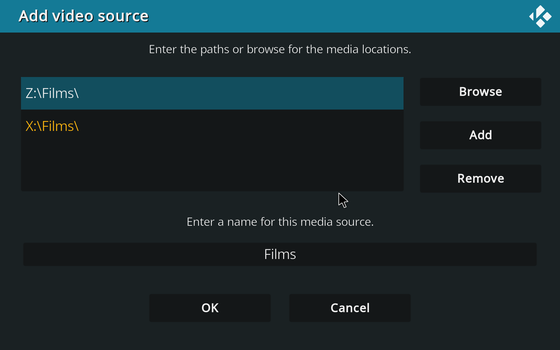
Click Movies from the home screen → Enter Files Section
Click Browse → Select your movie folder(s)
Click Add and Browse again to add another source
Click OK :
- This directory contains: Movies
- Click Get more... → Select "The TVDB v4 Scraper"
- Choose information provider: TheTVDB v4 (Movies)
- Settings:
- Language: English
Click TV Shows → Enter Files Section
Click Browse → Select your series folder(s)
Click Add and Browse again to add another source
Click OK :
- This directory contains: TV Shows
- Click Get more... → Select "The TVDB v4 Scraper"
- Choose information provider: TheTVDB v4
- Settings:
- Language: English
- Season Type: Default
Handling Absolute Numbering in Anime
Some anime series, such as One Piece, use absolute episode numbering rather than the standard season-based numbering. Kodi's default scraper relies on season and episode format, so files must be renamed accordingly to ensure proper scraping.
To align with Kodi's expectations, rename your episodes using the season-based format as listed on TheTVDB under the "List" tab for the show.
How to Change Season Type in Kodi
- Open Kodi and navigate to the directory containing the anime files:
Settings Media Library Videos... Series OnePiece - Highlight the
OnePiecefolder. - Long-press (or right-click) the folder and choose Change content.
- In the content settings, update the Season Type:
absolute ordering. - Click on Scan for new content.