📋 Tasks Server with Planka
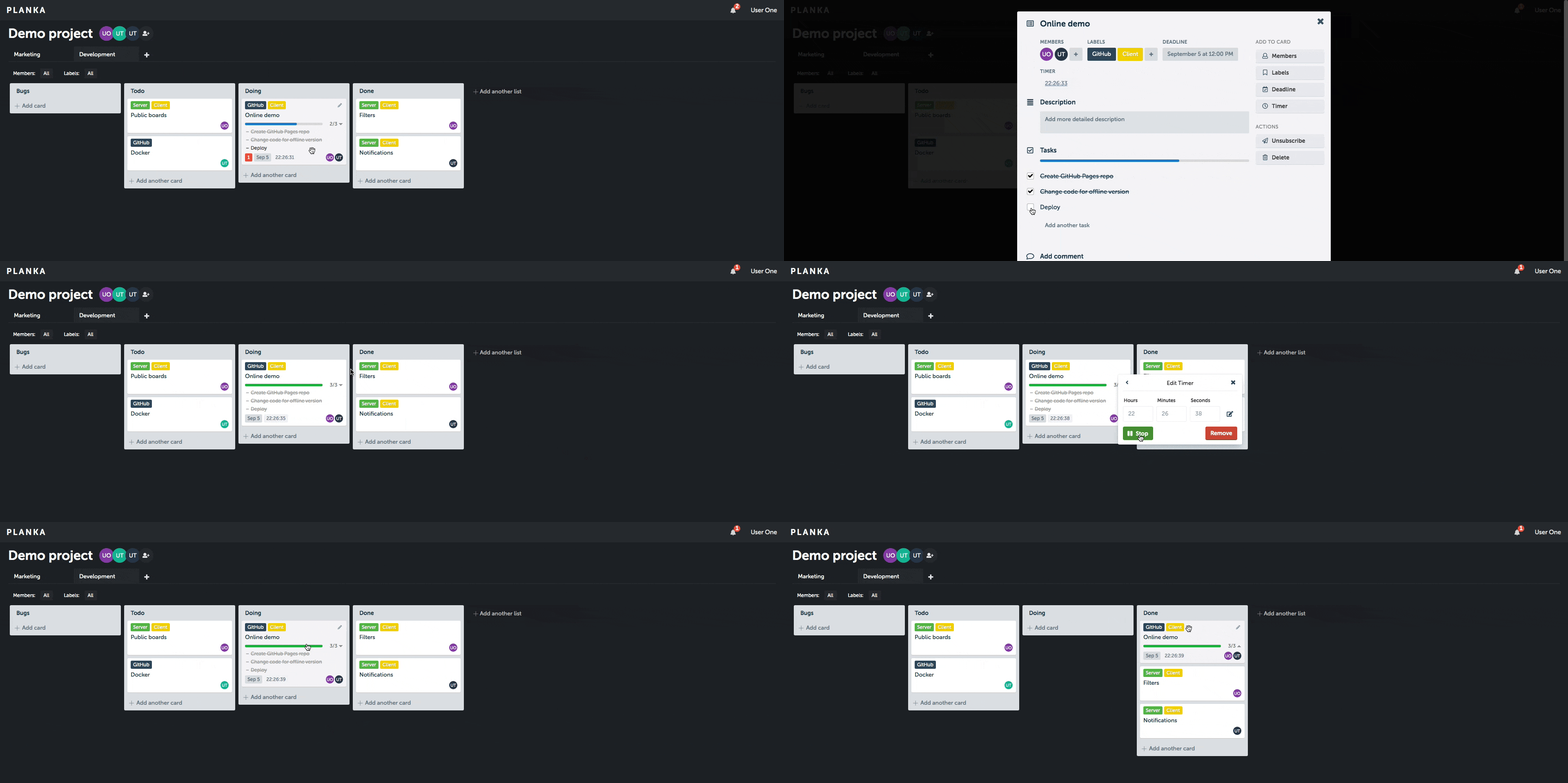
planka is an open-source trello-like kanban board built with React and Redux.
Info
The project is open-source and can be downloaded here:https://github.com/plankanban/planka.
📥 Installation
📋 Requirements
🐳 Install Planka
The use of Docker Compose will automate the installation of planka container.
🔧 Setup Planka Parameters
Before deploying, you need to define a few environment variables that will be used throughout the setup process.
BASE_URL: public URL where the web service is accessibleHOST_PORT: external port used by NGINX to route traffic to the service
# example of configuration for environment parameters
BASE_URL=https://planka.domain.fr
HOST_PORT=10010
⚙️ Configure Planka for Docker Compose
Planka can be deployed using Docker Compose.
The compose.yml file will automatically incorporate the environment variables configured in the previous step.
You can copy, paste, and run all of the following commands directly in your terminal.
# create docker directory
mkdir planka && cd planka
mkdir data
mkdir data/favicons data/background-images data/user-avatars data/attachments
mkdir data/postgres-db
# setup of compose.yml
tee compose.yml > /dev/null <<'EOF'
services:
  planka-server:
    image: ghcr.io/plankanban/planka:2.0.0-rc.4
    container_name: planka-server
    user: "${PUID}:${PGID}"
    volumes:
      - ./data/favicons:/app/public/favicons
      - ./data/background-images:/app/public/background-images
      - ./data/user-avatars:/app/public/user-avatars
      - ./data/attachments:/app/private/attachments
    environment:
      - NODE_ENV=${NODE_ENV}
      - BASE_URL=${BASE_URL}
      - DATABASE_URL=postgresql://${PG_USERNAME}:${PG_PASSWORD}@planka-postgres:5432/${PG_DATABASE_NAME}
      - SECRET_KEY=${SECRET_KEY}
    ports:
      - ${HOST_PORT}:1337
    depends_on:
      planka-postgres:
        condition: service_healthy
    healthcheck:
      test: ["CMD", "wget", "--spider", "-q", "http://localhost:1337/"]
      start_period: 180s
      start_interval: 5s
      interval: 60s
      timeout: 1s
      retries: 3
    restart: unless-stopped

  planka-postgres:
    image: postgres:16-alpine
    container_name: planka-postgres
    user: "${PUID}:${PGID}"
    volumes:
      - ./data/postgres-db:/var/lib/postgresql/data
    environment:
      - POSTGRES_DB=${PG_DATABASE_NAME}
      - POSTGRES_USER=${PG_USERNAME}
      - POSTGRES_PASSWORD=${PG_PASSWORD}
    healthcheck:
      test: ["CMD", "pg_isready", "-U", "${PG_USERNAME}", "-d", "${PG_DATABASE_NAME}"]
      start_period: 30s
      start_interval: 5s
      interval: 60s
      timeout: 1s
      retries: 3
    restart: unless-stopped
EOF
# setup of .env file
tee .env > /dev/null <<EOF
###################################################################################
# Run as non-root user
###################################################################################
PUID=$(id -u)
PGID=$(id -g)

###################################################################################
# NGINX Proxy Configuration
###################################################################################
BASE_URL=${BASE_URL}
HOST_PORT=${HOST_PORT}

###################################################################################
# Postgres Database Configuration
###################################################################################
PG_DATABASE_NAME=planka
PG_USERNAME=planka
PG_PASSWORD=$(openssl rand -hex 16)

###################################################################################
# Planka Configuration
###################################################################################
NODE_ENV=production
SECRET_KEY=$(openssl rand -hex 64)
EOF
Keep the .env file
All the secret informations will be stored in the .env file.
🐳 Install Planka with Docker Compose
Now that the compose.yml file has been generated, it's time to install all the containers.
# install and start the container
docker compose up -d
💾 Backup Planka database
Backup and Restore Planka database
Before upgrading Planka, it is recommended to create a backup of the database.
Navigate to the planka docker directory and execute the following commands:
# backup planka database
docker exec -t planka-postgres pg_dumpall -c -U planka > postgres.sql
7z a -t7z -mx=9 planka-backup.7z postgres.sql data/user-avatars data/background-images data/attachments
rm postgres.sql
# restore planka database
docker compose down
rm -rf data/postgres-db
7z x planka-backup.7z -o.
docker compose up -d
cat postgres.sql | docker exec -i planka-postgres psql -U planka
rm postgres.sql
🚀 Deploy Planka
Install NGINX
NGINX needs to be installed, follow the NGINX section.
Configure NGINX
NGINX needs to be configured using a file in /etc/nginx/sites-enabled directory.
This configuration file specify the documentation path:
server {
  server_name planka.domain.fr;

  # setup 404 error_page
  error_page 404 /404.html;
  include snippets/error-404.conf;

  # reverse proxy
  location / {
    proxy_pass http://127.0.0.1:10010;

    # keep it HTTP/1.1
    proxy_http_version 1.1;

    # websocket support (required for real-time notifications)
    proxy_set_header Upgrade $http_upgrade;
    proxy_set_header Connection "upgrade";

    # forwarded headers
    include proxy_params;
    proxy_set_header X-Forwarded-Host $host;
    proxy_set_header X-Forwarded-Port $server_port;

    # application-specific tuning
    proxy_read_timeout 600s;
    proxy_send_timeout 600s;
    client_max_body_size 100M;
  }
}
# restart nginx
sudo nginx -t && sudo service nginx restart
Replace
planka.domain.frby the name of your website.
Activate HTTPS
To activate HTTPS protocol, follow the Let's Encrypt section.
⚙️ Configure Planka
Change admin password
For security reasons, you must change the default administrator password immediately.
Log in using the factory credentials, then update the password in the admin settings:
- User:
demo@demo.demo - Password:
demo